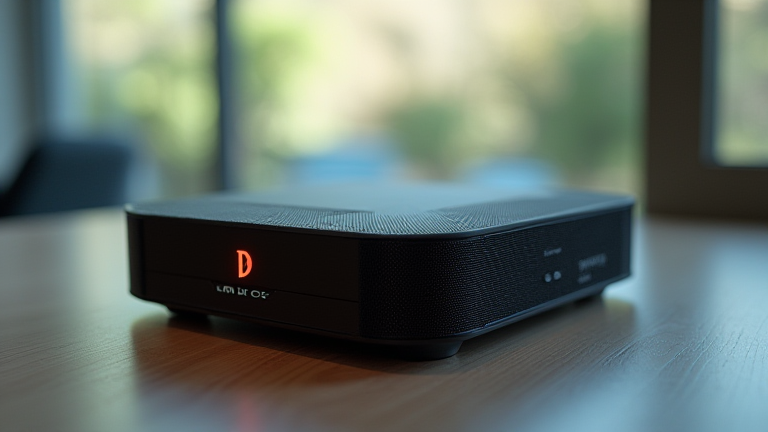
TL;DR: To reset a Netgear router, locate the small reset button on the back panel and press it with a paperclip for 10–15 seconds until the power light blinks. This action restores all factory default settings, clearing custom configurations and passwords.
How to Reset a Netgear Router: Step-by-Step Tutorial
If you want to dig deeper, check out our guide on How Circular Fashion Brands Dominate Gen Z Retail.
Resetting your Netgear router is a crucial troubleshooting step when you forget your admin password, encounter persistent connectivity issues, or suspect unauthorized access. While it erases all custom settings, it is often the most effective way to resolve stubborn network problems. Follow this comprehensive guide to safely perform a hard reset on your device.
Preparation and Identification
Before beginning, ensure your router is powered on and connected to a power source. Locate the reset button, which is typically a small, recessed hole on the back or bottom of the device. It is usually labeled “Reset” and requires a pointed object like a paperclip or SIM tool to press. Unlike the “WPS” or “Power” buttons, the reset button is often separated from other controls to prevent accidental presses. Have a pen and paper ready to record new default credentials, as you will need them to log back in.
Executing the Reset
Insert the paperclip into the reset hole and press the button firmly. Hold it down for at least 10 to 15 seconds. You must wait until the power LED on the front panel begins to blink amber or red, indicating that the system is rebooting. Do not release the button prematurely, as an incomplete reset may corrupt the firmware. Once the light stabilizes or turns green, the router has successfully restarted with factory defaults.
Tips for Success
Always reset the router while it is plugged in. Unplugging the power cord without resetting first does not clear the configuration. If the reset fails, try holding the button for up to 30 seconds. After resetting, connect via Ethernet cable for stability before accessing the web interface. The default login URL is usually http://192.168.1.1 or http://192.168.0.1. The default username is “admin” and the password is “password” unless your specific model indicates otherwise on the label. Change these immediately after logging in to secure your network.
FAQ
Q: Will resetting my router delete my internet connection settings?
A: Yes, a factory reset erases all custom configurations, including Wi-Fi names, passwords, and ISP login details, requiring you to reconfigure them.
Q: How long does it take for the router to reboot after a reset?
A: The reboot process typically takes between 2 to 5 minutes, during which the power light will blink or remain off until the system is fully operational.
Q: Can I recover my previous settings after a factory reset?
A: No, a factory reset permanently deletes all previous configurations; you must manually recreate your Wi-Fi network name, password, and other preferences.